
Numbered Steps
A sequential and ordered list of steps in a process.
Guidelines
When to Use
- Use numbered steps to break up long processes into parts on one page.
- Use to show a visual overview of steps. Additional information can be shown to further describe each step.
When Not to Use
- Do not use numbered steps when there is only one step in a process.
States
Static or Inactive
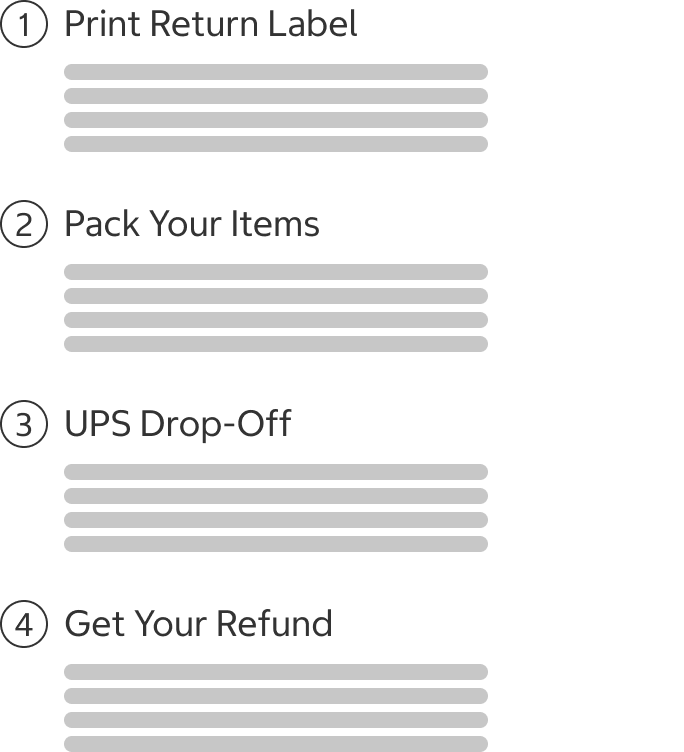
- If a process’s steps are shown statically and are not interactive, such as the process for returning a product by mail, each step title is shown in a regular font weight.
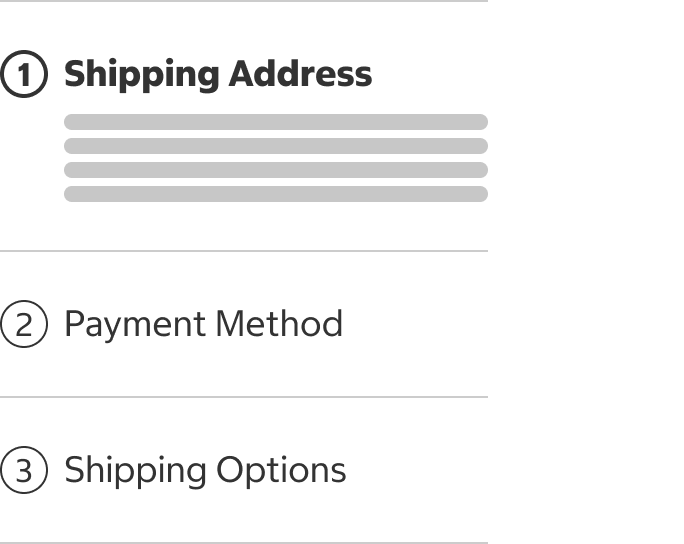
- If the user progressively interacts with each step on the screen, such as in a checkout process, inactive step titles are shown in a regular font weight.
Active
- If the user progressively interacts with each step on the screen, the active step title is shown in bold.
Skeleton
- Use this state whenever data is being loaded to help establish a user's mental model of the component's shape and the page layout.
- Use when the majority of page elements are loaded from API calls.
- The skeleton is temporary and should disappear once the data is loaded.
Usage
Numbered Steps vs. Progress Indicator
- Use numbered steps when the steps are short and can be shown on a single page.
- Use numbered steps when the steps are shown statically and are informational (such as the process for returning a product by mail).
- Use the progress indicator for a multistep process that spans more than one page and that provides the status of each step.
Process with Static Steps
Process with Active and Inactive Steps
Content
- The step title should be concise and descriptive.
- When the step title is a statement or complete sentence, use sentence case with end punctuation.
- When the step title is an incomplete sentence, use title case without end punctuation.
- Use the optional help text if additional information about the step is needed.
- Help text should be written in sentence case with end punctuation.
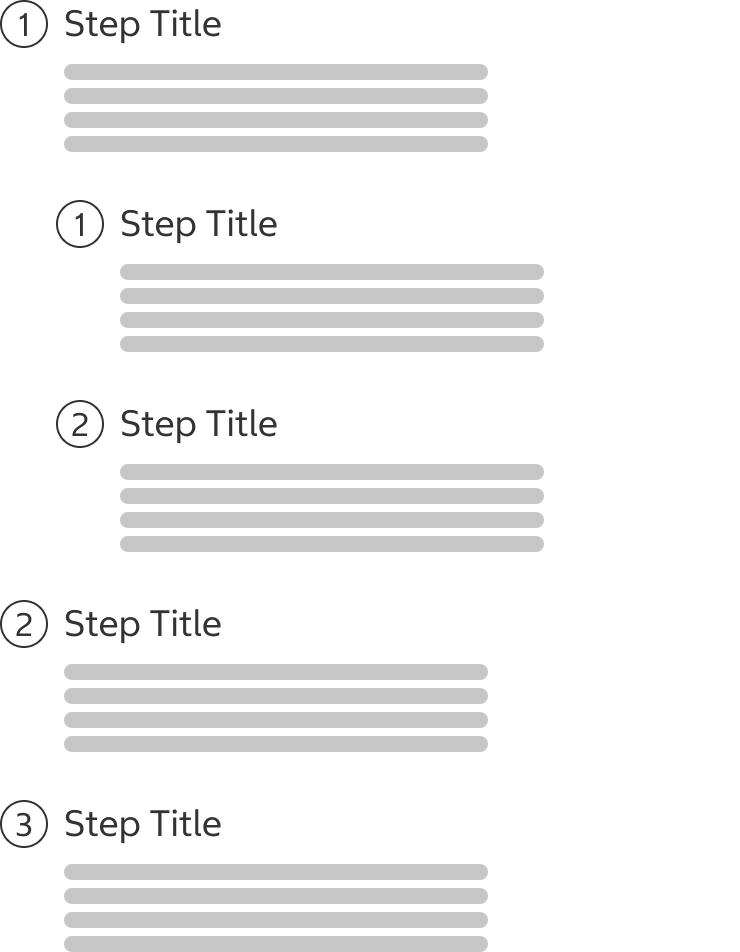
- Avoid nesting numbered steps within other steps. Break up larger steps into smaller ones instead.
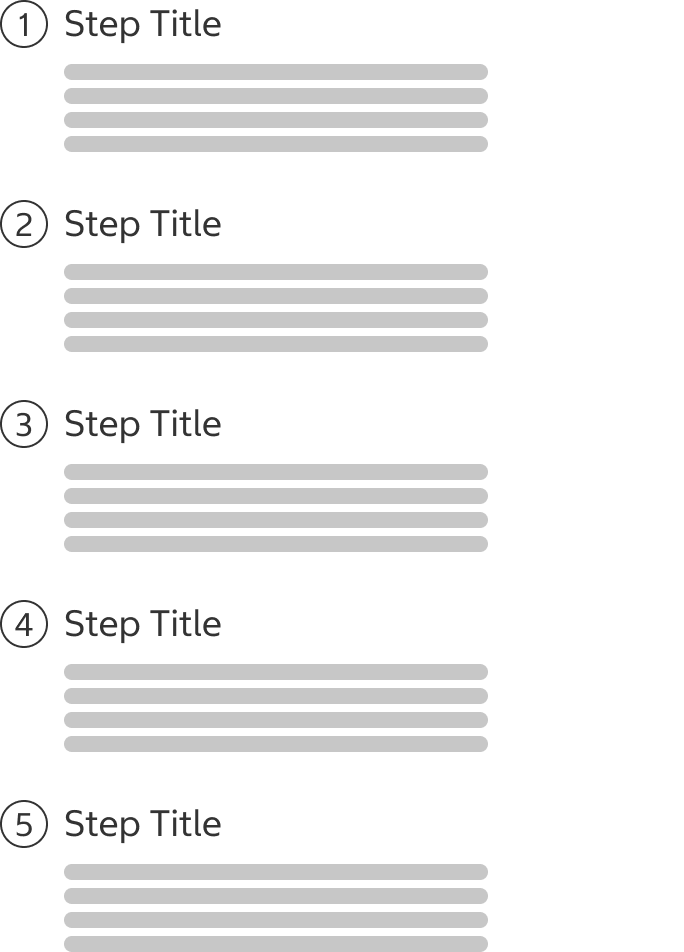
Do Break Processes Into Single Steps
Do Not Nest Steps Into Steps
Behavior
- If the user progressively interacts with each step on the screen, such as in a checkout process, inactive step titles are shown in the Inactive state while the active step will be shown in the Active state.
- The step title and help text will wrap to the next line if it does not fit in the available horizontal space.
Structure
- Step number: Positioned to the top left of its step title.
- Step title
- Help text (optional)

Sizing
- The size of the step number and circle stay the same size and do not scale across breakpoints.
- The height of the step grows with the content.
- Do not use excessively long step titles and help text. Learn more about line length for optimal readability.
Spacing
- Numbered steps should be vertically spaced 24px between steps on all breakpoints.
- If dividers are being used to separate steps, vertically space the step 24px above or below the divider.
- When using dividers, show a divider above the first step and below the last step.
Accessibility
Keyboard Accessibility
No considerations for keyboard accessibility need to be made as numbered steps are not actionable.
Screen Reader Output
[AC1] When a screen reader user presses DOWN ARROW to a current step:
- Name: The name of the step is announced.
- Role: The role of “heading” is announced.
- State: When applicable, the step is announced as current.
Example Output: “current step 2 image heading level 2 Payment Method”
Developer Notes
- Add aria-current=”step” to the <div> container containing the number image and section title.
- If applicable, wrap all numbered steps inside a <ol> element to group them together and use <li> on each individual step.
In the Wild
Costco.com checkout screen showing numbered steps